Sitbaro User Guide
Sitbaro watches your posture through your webcam while you work, using an AI model that runs entirely in your browser, and warns you the moment you start slouching. Your video is never uploaded or sent anywhere.
1. Getting Started
- Open sitbaro.com in Chrome or Edge.
- Click "1. Start camera" and allow camera access when your browser asks.
- Sit up straight, in your normal working position, and click "2. Save current posture as baseline". Hold still for about 1.5 seconds while it measures.
- That's it — Sitbaro is now watching your posture in the background.
2. Reading the Two States
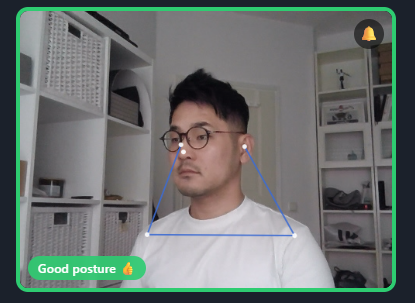
Good posture — green border, green "Good posture" badge. Your head and shoulders are aligned with the baseline you saved.
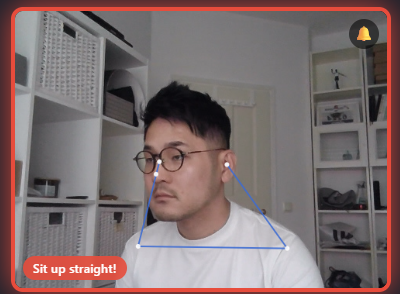
Slouching — red pulsing border, red "Sit up straight!" badge, and a sound alert. This triggers when your head drops forward or your shoulders round below your saved baseline for more than about half a second.
3. Adjusting Sensitivity
Use the Sensitivity slider to control how strict the detection is. Move it right for a more sensitive trigger, left for a more relaxed one. If Sitbaro feels like it's nagging too much or not enough, this is the first thing to adjust — re-calibrating your baseline after changing your seating position also helps.
4. Muting Sound Alerts
Click the bell icon (🔔) to mute or unmute the sound alert. It turns into 🔕 when muted. This setting is remembered the next time you visit.
5. Pausing Monitoring
Click the pause icon (⏸️) to temporarily stop monitoring — useful when you step away, like a bathroom break, without wanting alerts to fire. Click again (▶️) to resume; Sitbaro won't flag a bad posture the instant you come back.
6. Privacy Mode
Click the eye icon to hide the camera video entirely and show only an abstract joint skeleton on a black background instead. This is useful when people are walking behind you, or when documents or a whiteboard in the background shouldn't be visible.
7. Using the Mini Floating Window
Click "Switch to mini window" to pop the camera view out into a small window that floats above your other apps (Chrome/Edge only). This lets you keep an eye on your posture while working in your code editor, documents, or anywhere else. Close the mini window to bring the view back into the main tab.
8. Changing Language
Use the dropdown in the top-right corner of the page to switch the interface language. Sitbaro also auto-detects your browser's language the first time you visit.
9. Privacy & Data
Your camera video is processed entirely on your own device using an on-device AI model (TensorFlow.js). Nothing is ever sent to a server — Sitbaro has no way to see or store your video. See our Privacy Policy for full details.